Resource Price Book
The Resource Price Book holds unit rates for every material, labour category, and equipment type used in the project. The AI generates quantities and crew configurations — it never sets prices. All rates come exclusively from the price book.
What a price book contains
| Section | Examples |
|---|---|
| Materials | Cement (50 kg bag), Reinforcement bar 10 mm dia (kg), Concrete C-25 ready-mix (m³) |
| Labour | Mason (day), Unskilled labourer (day), Carpenter (day) |
| Equipment | Concrete mixer 0.5 m³ (hour), Tower crane (hour), Compactor (day) |
Each resource has a name, unit, and unit rate.
Importing a price book
A price book is imported through the same Import Dataset drawer used for BOQ and rate tables, with the Resource Indexes dataset type selected.
- Go to Table Manager and click Import Datasets.
- Provide the source — paste a Google Sheets URL, or click Browse for a local
.xlsx/.xlsworkbook (unlike BOQ/rate tables,.csvis not accepted here — a single CSV can't hold three separate tabs). - Under Dataset Type, select Resource Indexes.
- Under Target Matching Scenario, choose the scenario this price book belongs to.
- Map each of Equipment Tab, Labor Tab, and Material Tab to the corresponding sheet tab.
- Click Ingest Dataset.
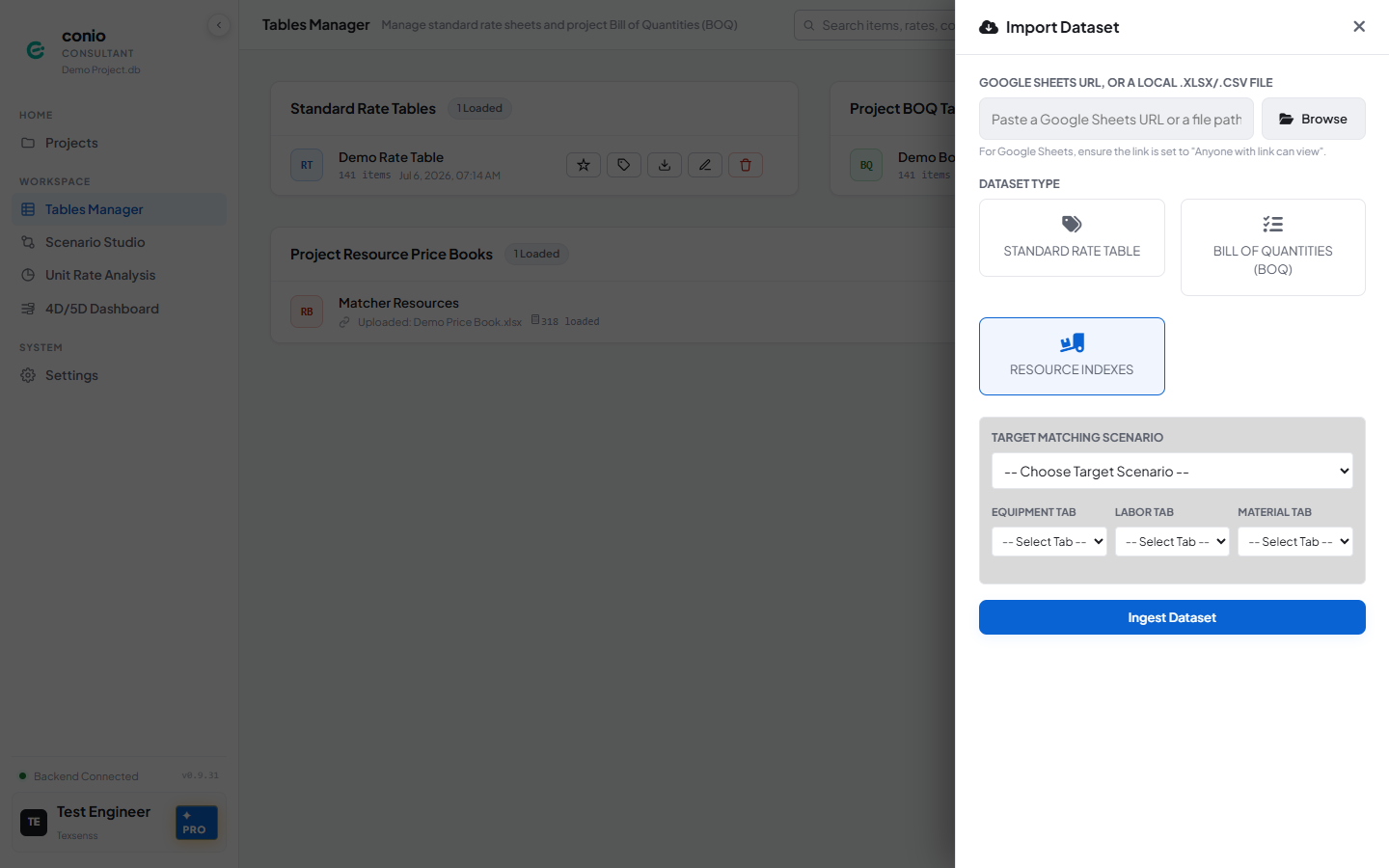
There is no manual column-mapping step within each tab — Name and Rate columns are detected automatically from the header row, and only the Material tab reads a Unit column (Equipment and Labor are always priced per hour). If your workbook only has some of the three resource types, leave the other tab selectors on -- Select Tab --.
See Appendix E — Accepted File Formats for the exact header keywords recognized per tab, and a gotcha worth knowing about: rows with a rate of zero are silently dropped, with no warning.
Setting the Active Price Book
When a scenario has multiple price books available (or when generating URAs for the first time), Conio needs to know which book to use. The Active Price Book is the project-wide default.
To set a book as active:
- In Table Manager → Project Resource Price Books, find the card you want.
- Click Set Active (star icon). This button only appears on price books that are not already active.
The active card shows an In use pill. Only one book can be active at a time.
The active price book is used automatically when:
- Generating URAs for a scenario that has no resources loaded.
- Pricing templates via Export as Rate Table → Priced.
- Running Coverage Analysis — an active price book is required before coverage can run at all.
Checking price book integrity
Large price books imported from spreadsheets often contain near-duplicate resource names — the same equipment entered twice with slightly different wording, or a stray typo. Conio can scan for these automatically.
- On the price book's card, click Preview.
- Click Check Integrity in the top-right of the preview.
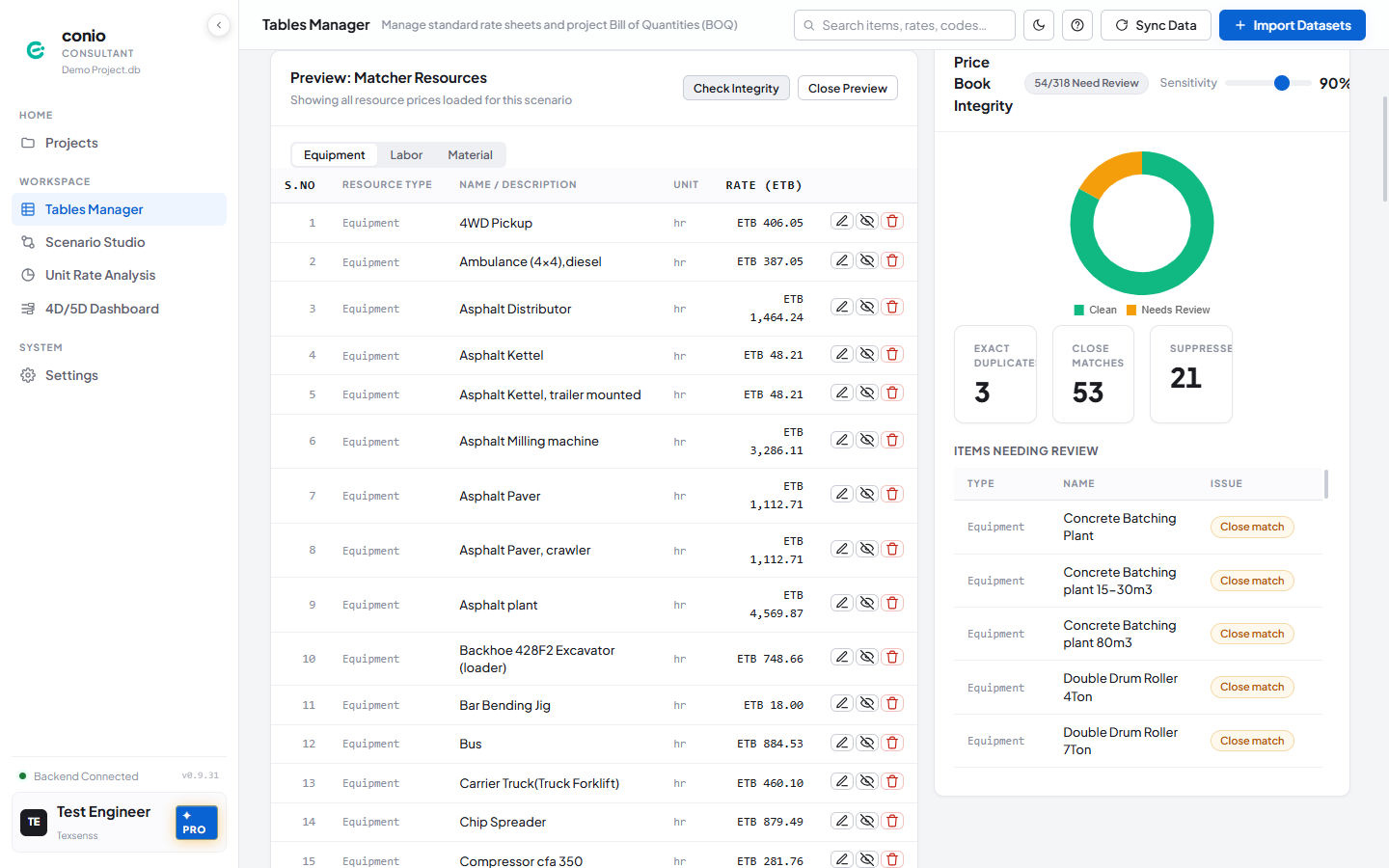
The Price Book Integrity panel opens on the right with:
- A Sensitivity slider (default 90%) — how similar two names must be to be flagged. Lower it to catch more borderline matches; raise it to only flag near-identical names.
- A Clean vs. Needs Review doughnut chart.
- Three counts: Exact Duplicates (identical normalised names), Close Matches (similar but not identical), and Suppressed (items already excluded — see below).
- An Items Needing Review list, each tagged Duplicate or Close match.
Names that differ only by a grade or class suffix — e.g. "Operator II" vs "Operator III" — are not flagged. The check assumes these are intentionally different resources, not typos.
Resolving flagged items
Each row in the resource list (visible below the preview table) has three actions:
- Edit (pencil) — fix a typo or rename in place.
- Suppress (eye icon) — exclude the item from matching and coverage analysis without deleting it. Use this for a close match you're not certain is a true duplicate, or a resource you want to keep for reference.
- Remove (trash) — delete the row outright. Use this once you've confirmed it's a genuine duplicate.
After resolving items, click Check Integrity again (it re-runs with the current Sensitivity setting) to confirm the counts have dropped.
Resource match confidence
When the AI names a resource in a generated URA, Conio looks it up in the price book and reports how well the name matched:
| Badge | Meaning |
|---|---|
| (no badge) — exact | The AI-generated name matches a price book entry verbatim |
~ — fuzzy | The nearest substring match was used; review that the right resource was selected |
⚠ — unmatched | No match found; the rate for this row is 0 |
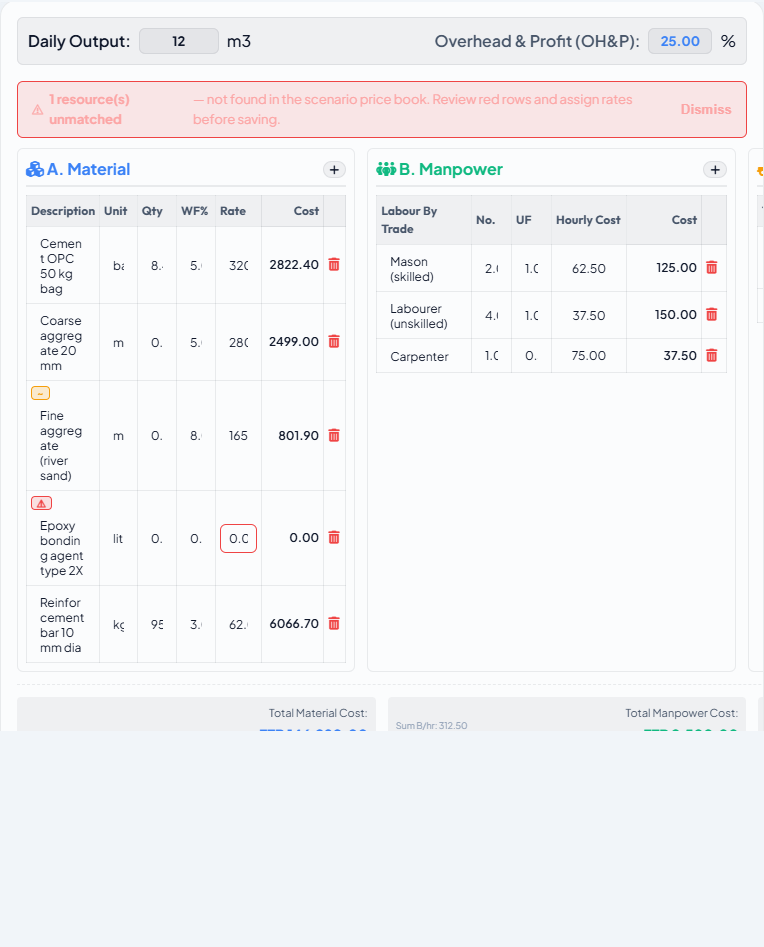
A yellow zero-rate warning banner appears above the URA grid whenever any resource row is unmatched. Review the price book and add the missing resource, then re-generate the URA or manually enter the rate on the unmatched row.
Waste factors
Each material row in a URA carries a waste factor percentage (0–20%). The effective quantity used in cost calculation is:
Effective quantity = quantity × (1 + waste_factor / 100)
The AI estimates waste within recommended ranges:
| Material type | Typical waste factor |
|---|---|
| Concrete | 5–10% |
| Masonry units (blocks, bricks) | 10–15% |
| Reinforcement bar | 3–5% |
| Timber, plywood | 5–10% |
| Other materials | 2–5% |
You can edit waste factors manually in the URA workspace.