Importing BOQ Tables
A Bill of Quantities (BOQ) table is the foundation of every project in Conio. It defines what work needs to be priced: the descriptions, quantities, and units.
Supported sources
Conio imports tables from two sources:
- Google Sheets — the sheet must be shared with "Anyone with the link — Viewer" access before Conio can read it.
- A local file —
.xlsx,.xls, or.csv— browsed directly from your computer. No upload to Google Sheets is required.
Use whichever is more convenient; both go through the same import dialog below.
Preparing a Google Sheet
If your BOQ is already in Google Sheets: confirm it is shared correctly:
- Click Share (top-right in Google Sheets).
- Under General access, set to Anyone with the link → Viewer.
- Copy the share URL.
If your BOQ is in Excel or CSV and you'd rather use the Google Sheets path:
- Go to sheets.google.com and click Blank.
- In the new sheet, go to File → Import → Upload and select your file.
- Choose Replace spreadsheet and click Import data.
- Share the sheet as described above.
Otherwise, skip straight to the import walkthrough below and browse for the local file directly.
Multi-sheet workbooks
If your Google Sheet or Excel workbook has multiple sheets (tabs), Conio will show a sheet selector after you load it. You can import each sheet as a separate BOQ table, or select only the relevant tab.
Import walkthrough
Step 1 — Open the import dialog
- Click Table Manager in the left sidebar.
- Click Import Datasets (top-right of the header).
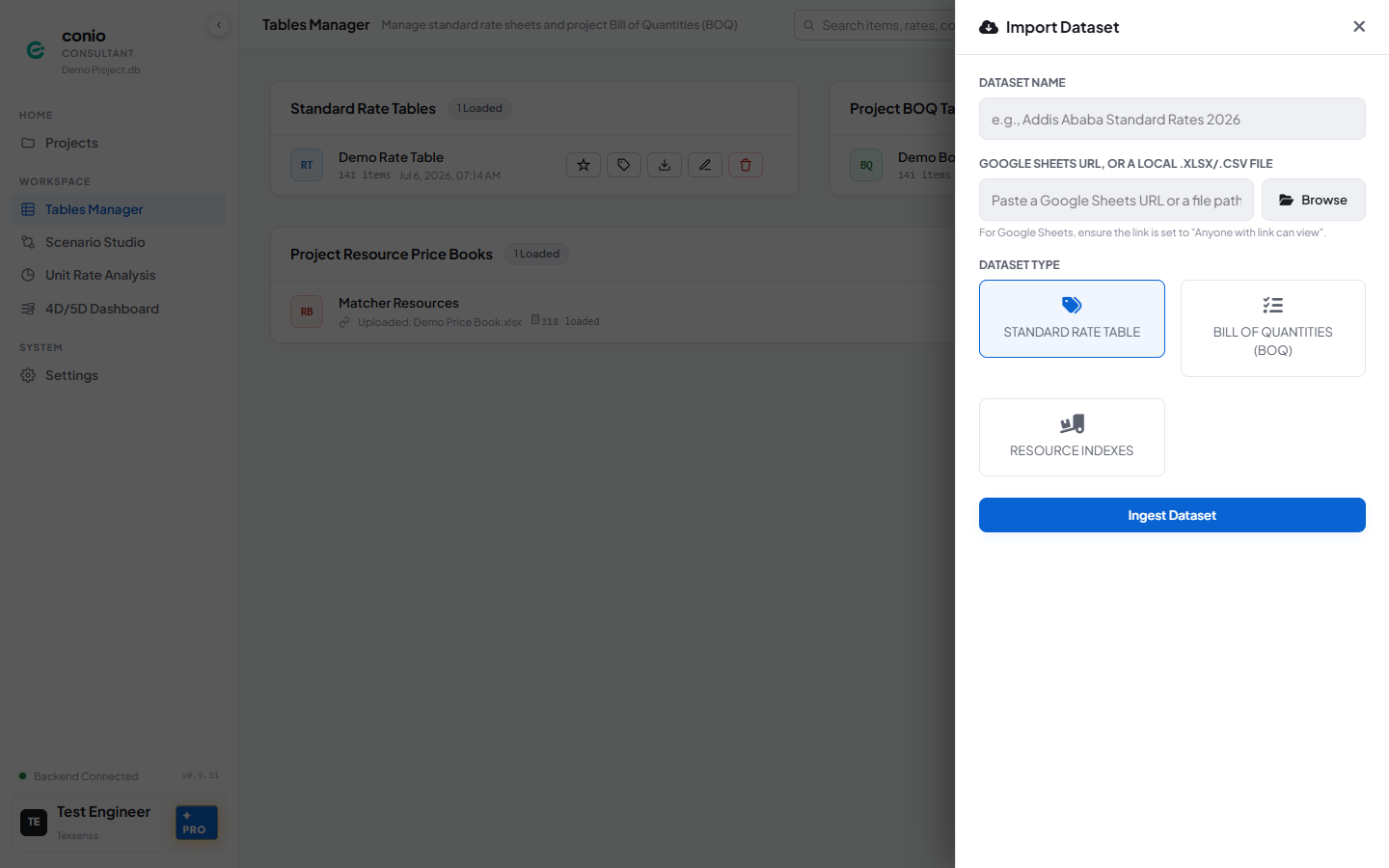
Step 2 — Provide the source
Pick whichever matches your file:
- Google Sheets: paste the share URL into the source field and press Tab/Enter to load it.
- Local file: click Browse and select your
.xlsx,.xls, or.csvfile from the native file picker.
Conio validates access (Google Sheets) or reads the file (local) and shows a preview. If a Google Sheet is not publicly shared, an error will appear — re-check the sharing settings and try again.
If the source has multiple tabs, a Sheet dropdown appears. Select the tab containing the BOQ data. Under Dataset Type, select Bill of Quantities (BOQ).
Step 3 — Ingest
Conio detects your Description, Unit, Quantity, and (optionally) Item No. columns automatically by scanning the header row for recognizable labels — there is no manual column-mapping step. Click Ingest Dataset.
Column detection depends on your header row using recognizable labels, and heading rows depend on having a Description with no Unit. See Appendix E — Accepted File Formats for the exact column keywords and heading-detection rule before you prepare a new sheet.
If the header row can't be confidently identified, the import fails with an error rather than guessing — re-check your header labels against Appendix E and try again. The table appears in Table Manager immediately on success.
What Conio extracts
From each row, Conio stores:
| Field | Example |
|---|---|
leaf_description | "Excavation in hard rock, depth 0–1.5 m" |
ancestor_path | "Substructure > Earthworks > Excavation" |
quantity | 42.5 |
unit | m³ |
The ancestor_path (the chain of heading rows above each item) plays an important role in matching quality. Conio uses it to narrow the search scope before comparing leaf descriptions. See Scenario Studio for details.
Troubleshooting imports
| Symptom | Cause | Fix |
|---|---|---|
| "Access denied" or URL error (Google Sheets) | Sheet not shared publicly | Open the sheet → Share → Anyone with the link → Viewer |
| Import fails with "could not detect column headers" | Header row doesn't use a recognized label | Rename your header row using the column keywords in Appendix E, then re-import |
| All items show zero quantity | Quantity column wasn't recognized, or is genuinely blank in the source | Check your Quantity header against Appendix E; quantities may be in a separate sub-column the parser didn't pick up |
| Ancestor path is flat (no headings) | Headings not detected | Ensure heading rows have a Description but a blank Unit and zero Quantity — see Appendix E — heading detection |
| Garbled characters in descriptions | Special characters in source | Re-save the source file as UTF-8 before importing |