Your First Priced BOQ SOLO+
Goal: Go from a blank project to a priced, exportable Bill of Quantities.
You'll need:
- A BOQ (quantities) file and a rate table file — each either a Google Sheet shared as Anyone with the link — Viewer, or a local
.xlsx/.xls/.csvfile on your computer. Check your header row against Appendix E — Accepted File Formats if you haven't prepared these before — column detection is automatic, but only if your headers use recognizable labels. - A Pro license active, with an AI provider configured and tested (Step 4 requires both). See Licensing and AI Provider Setup if you haven't done this yet.
Try Explore the Demo Project first — a ready-made project with a BOQ table, rate table, and matched scenario already in place, so you can see the whole workflow before bringing your own data.
Step 1 — Import your BOQ table
- Click Table Manager in the left sidebar.
- Click Import Datasets.
- Enter a Dataset Name.
- Provide the source — pick whichever matches your file:
- Google Sheets: paste the share URL into the source field.
- Local Excel/CSV file: click Browse and select the file from your computer.
- Under Dataset Type, select Bill of Quantities (BOQ).
- If prompted, select the sheet tab containing the BOQ data.
- Click Ingest Dataset — Conio detects the Description, Quantity, and Unit columns automatically from your header row.
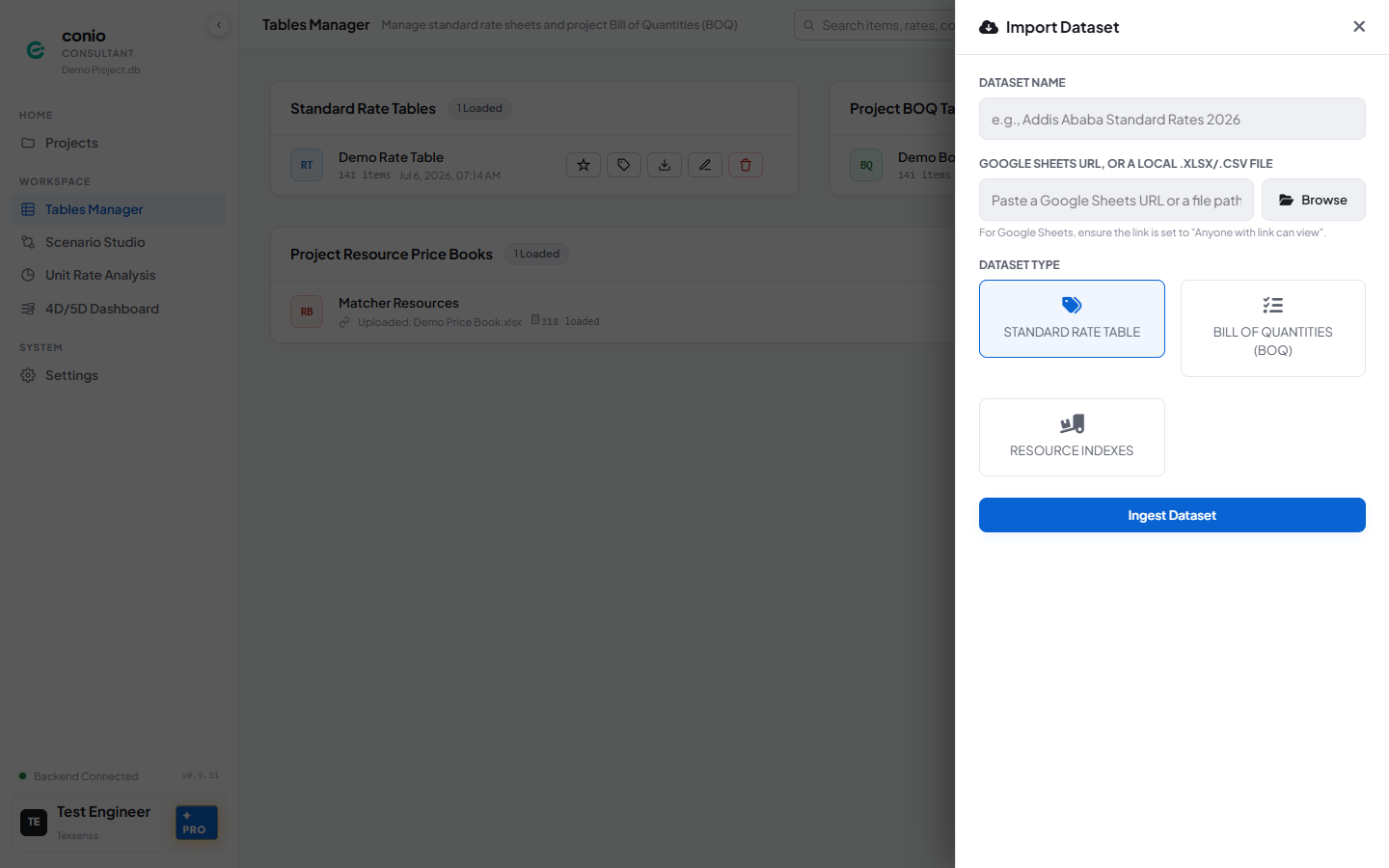
Step 2 — Import your rate table
- Click Import Datasets again.
- Enter a Dataset Name.
- Provide the source the same way as Step 1 — a Google Sheets URL, or Browse for a local file.
- Under Dataset Type, select Standard Rate Table.
- Click Ingest Dataset — Conio detects the Description, Unit, and Rate columns automatically from your header row.
Step 3 — Create a scenario
- Click Scenario Studio in the left sidebar.
- Click New Scenario.
- Enter a name, then select the BOQ table and rate table you just imported.
- Click Create.
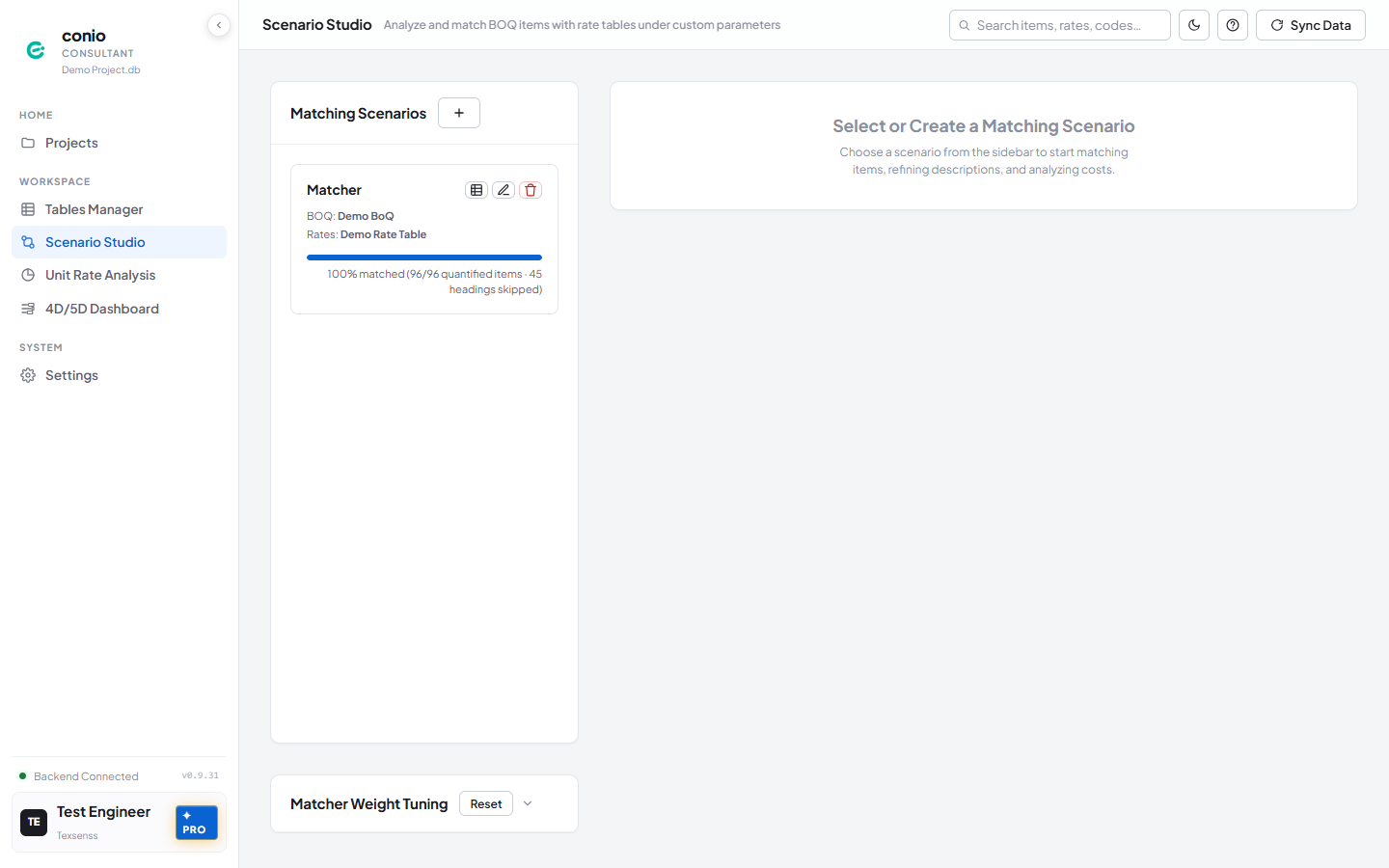
The scenario opens in the Scenario Studio workspace, with your BOQ items listed on the left.
Step 4 — Run Match All SOLO+
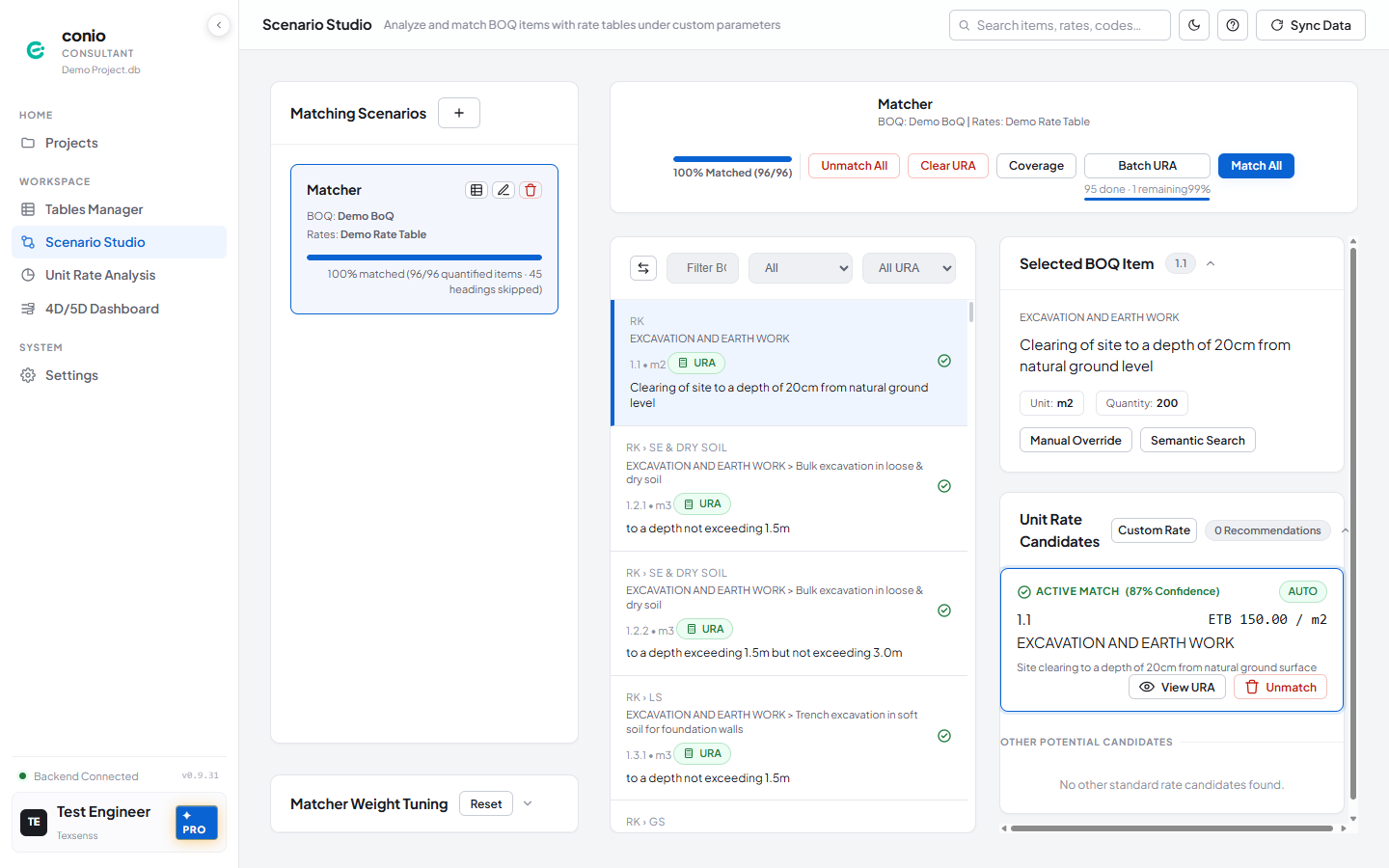
- Click Match All in the scenario toolbar.
Every BOQ item is scored against the rate table and matched where the score is confident enough. Wait for it to finish — the match percentage in the toolbar updates as it runs.
Step 5 — Resolve items left unmatched
Match All matches everything it's confident about; anything left is unmatched.
- Use the status dropdown above the item list and select Unmatched.
- Select an item — its top-ranked rate table candidate (if any) loads in the Unit Rate Candidates panel on the right, with a match score.
- If the candidate is correct, click Approve Match.
- If it's wrong or no candidate appears, click Semantic Search to keyword-search the rate table directly, or Manual Override to enter a custom description and rate.
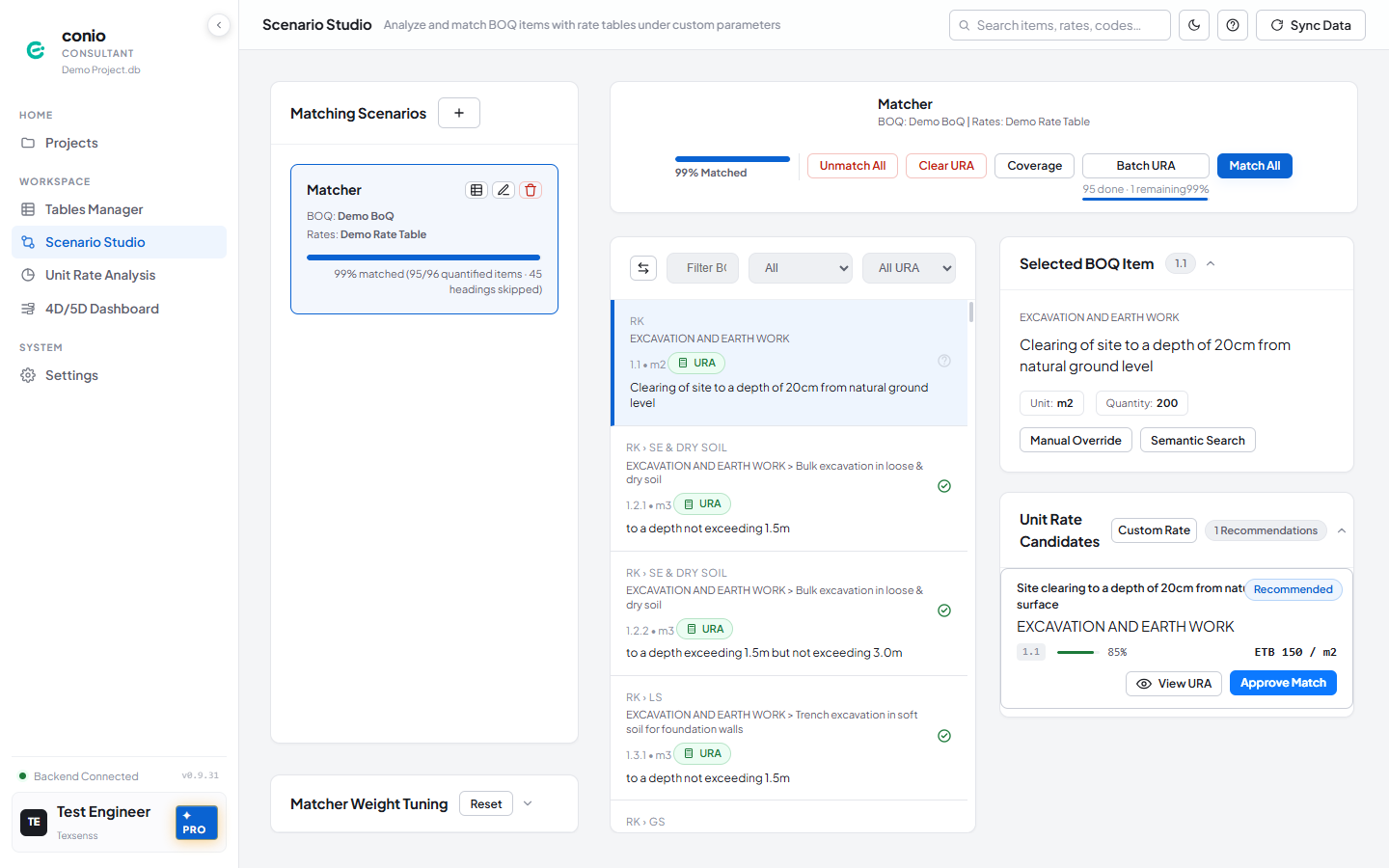
Repeat for each unmatched item.
Step 6 — Review and export the Rated BOQ
- Go back to the Scenario Studio list (where your scenario card is shown).
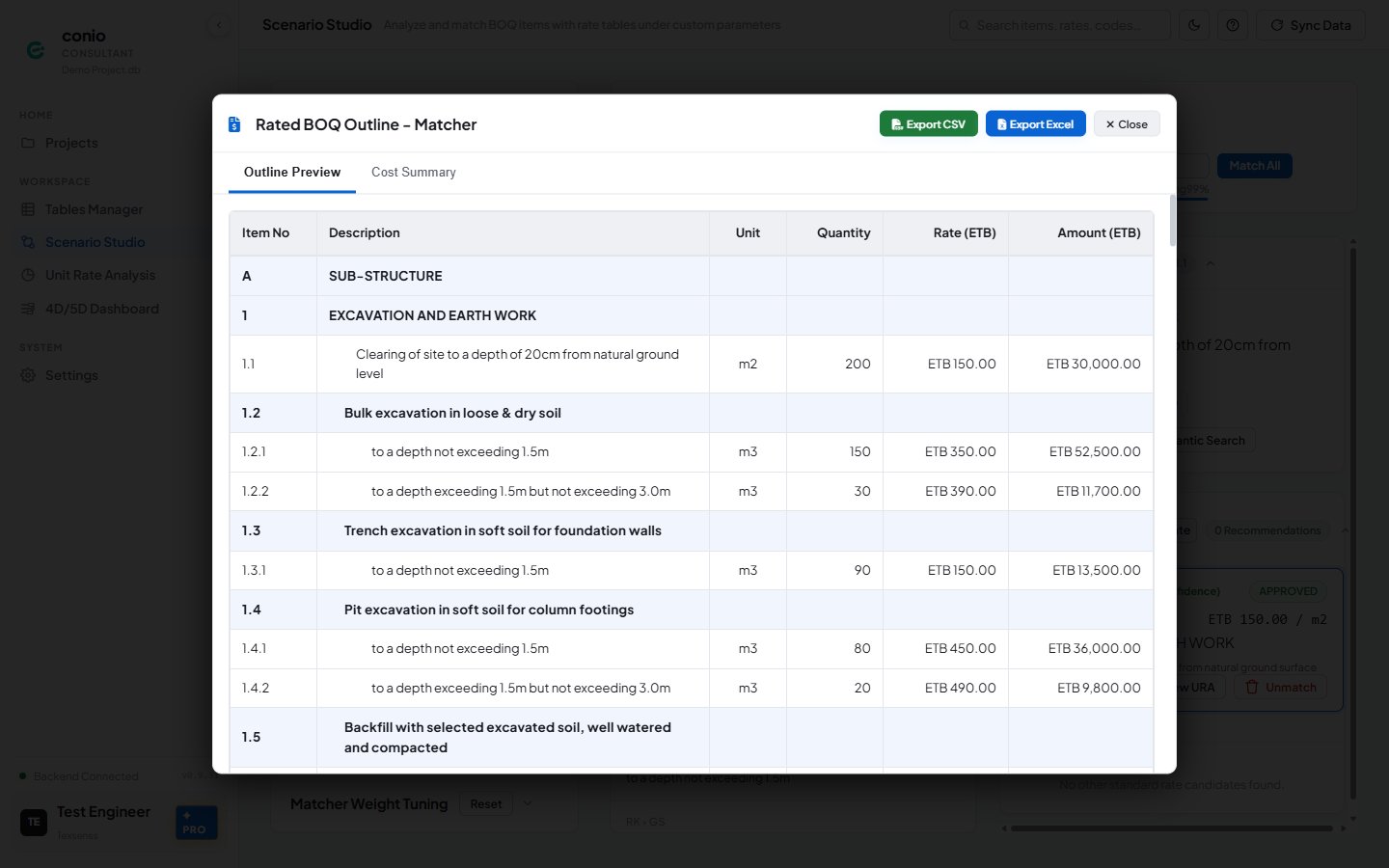
- Click the table icon (Preview Rated BOQ) on your scenario's card.
- Check the Outline Preview tab — every row should show a quantity, rate, and amount. Switch to the Cost Summary tab for the rolled-up total by section.
- Click Export CSV or Export Excel to download the priced bill.
What you should see
The Scenario Studio status bar reads at or near 100% matched. The Rated BOQ preview shows every quantified item with a non-zero amount, and the exported file opens with the same figures.
If something's wrong
| Symptom | Where to look |
|---|---|
| "Access denied" importing a Google Sheet | Importing BOQ Tables — sharing setup |
| No candidates appear for an unmatched item | Manual Rate Matching — score threshold |
| Match All is missing or blocked | Licensing — this step requires Pro |
| Many items still pending after Match All | Matcher Scoring Profile |
Next
Improve match accuracy with AI Refine and the Matcher Scoring Profile →