Explore the Demo Project
Goal: Get a feel for Conio's full workflow — tables, matching, price book, cost totals, and scheduling — without importing anything or configuring AI first.
You'll need: Nothing but the demo project itself. Every screen in this tour already has real data in it, so no Pro license or AI provider setup is required to follow along.
Step 1 — Open the demo project
If you haven't downloaded it yet, see Try the demo project for the link and where to save the file.
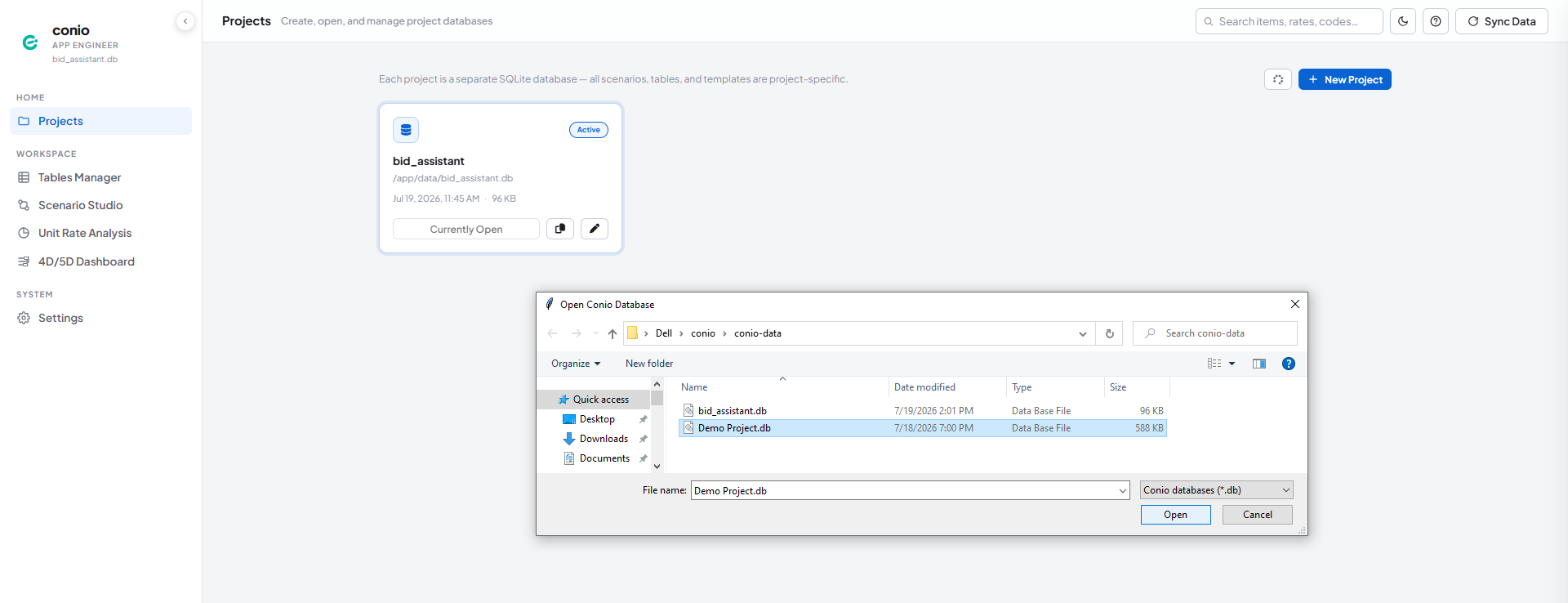
- Click Projects in the left sidebar.
- Click Open File.
- Browse to your
conio-data\folder and selectDemo Project.db.
Step 2 — Look at the tables already imported
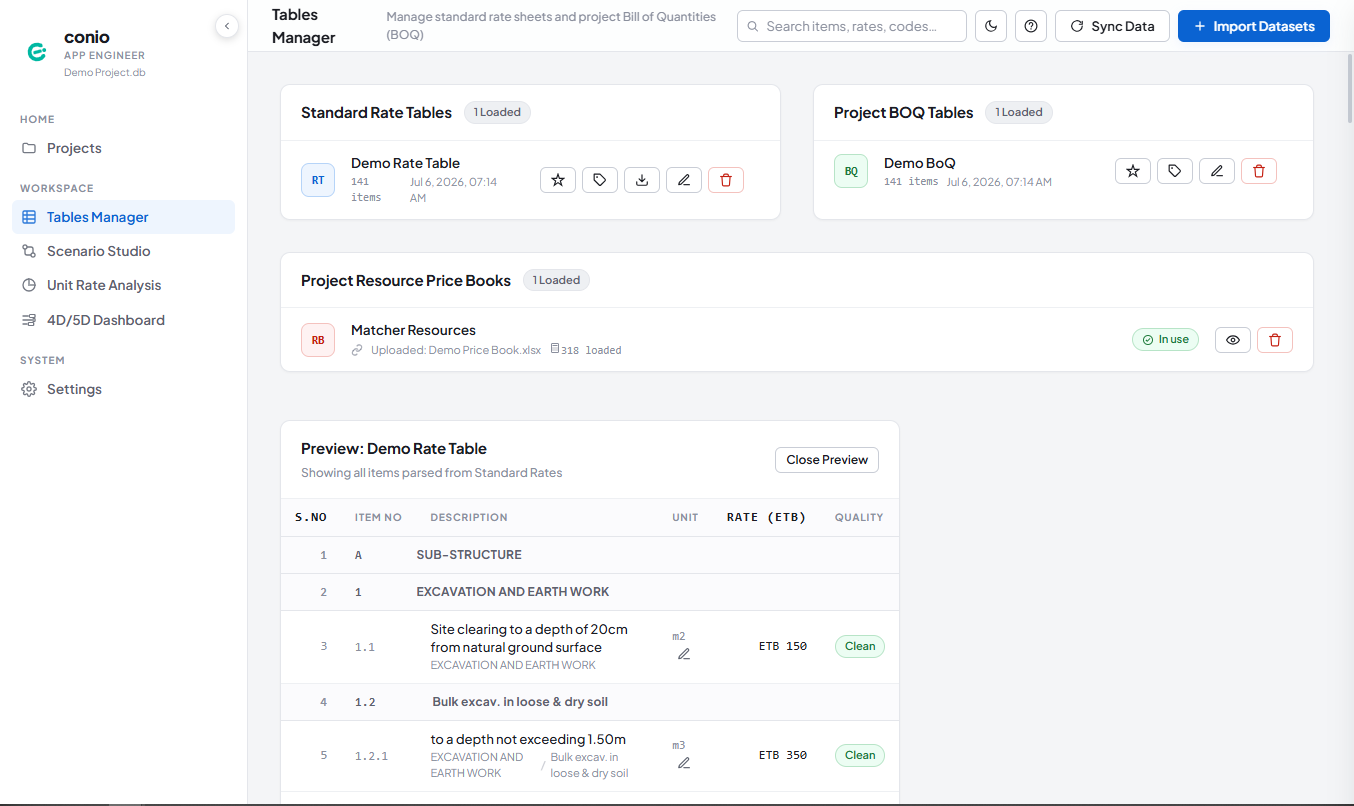
Click Tables Manager in the sidebar. Demo Rate Table and Demo BoQ are both already imported, with a Matcher Resources price book uploaded alongside them.
Click into a table card to preview it — descriptions, units, and rates are already parsed into the hierarchical structure Conio uses (heading → sub-heading → item).
Step 3 — See a finished match in Scenario Studio
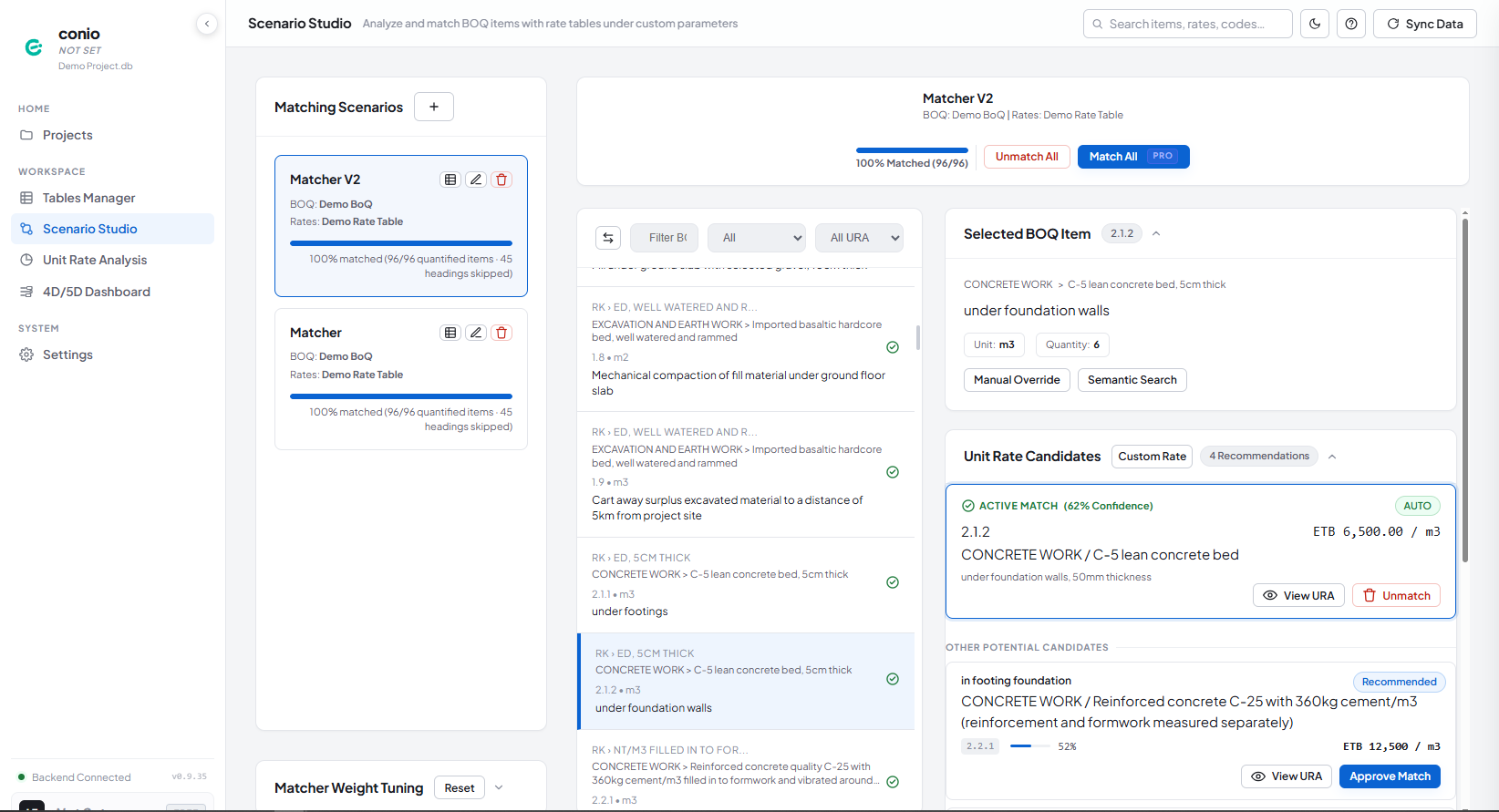
Click Scenario Studio. Two scenarios are ready to open — Matcher and Matcher V2 — both already matched end to end.
Open one, then click any BOQ item in the list. The Unit Rate Candidates panel on the right shows the active match with its confidence score, plus any other close-scoring alternatives underneath — this is the same panel you'll use in Your First Priced BOQ once you're matching your own data.
Step 4 — Check the price book
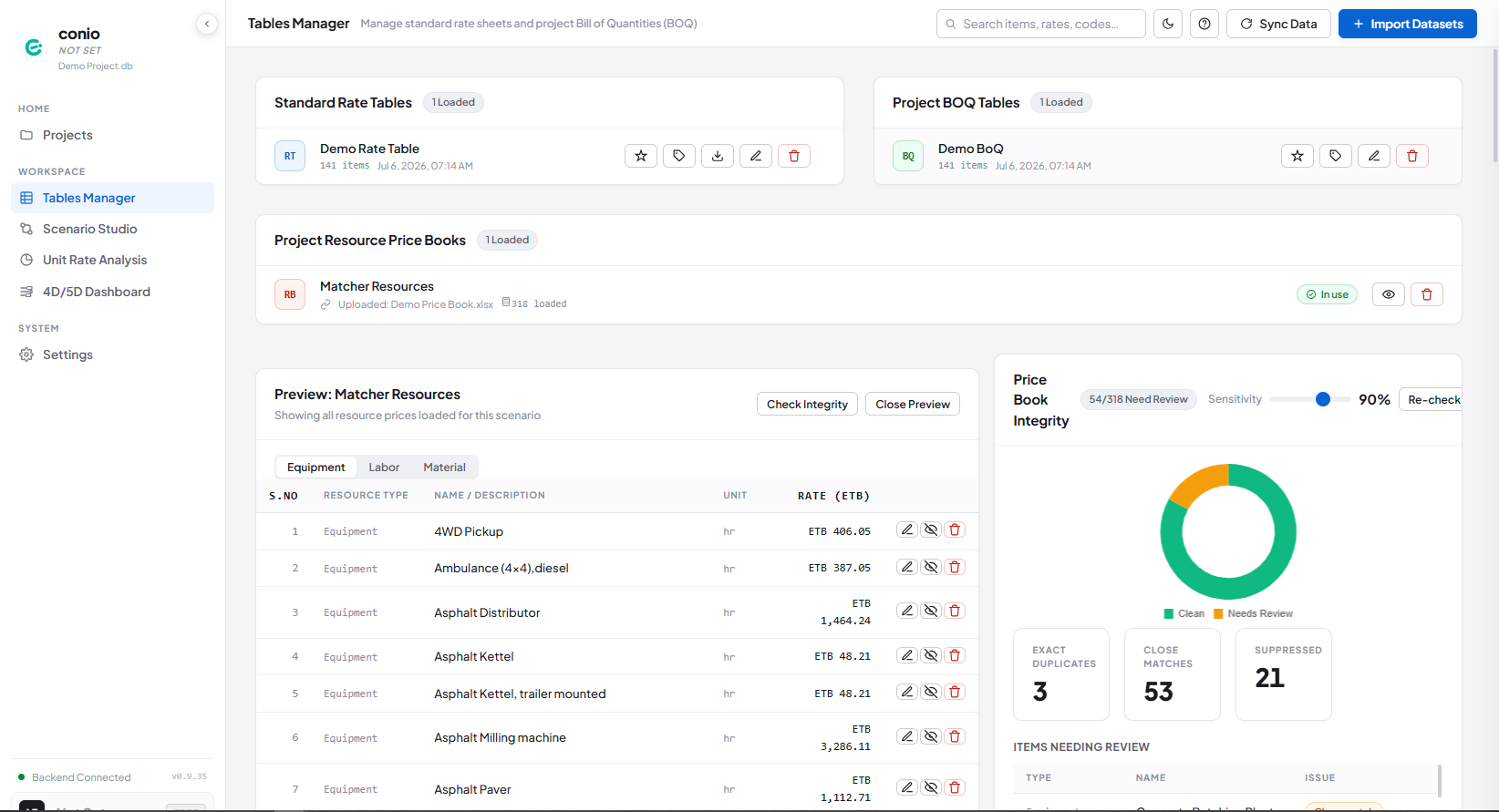
Back in Tables Manager, click the eye icon on the Matcher Resources price book card to preview it. Switch between the Equipment, Labor, and Material tabs to see the resource rates a Unit Rate Analysis would draw from.
Notice the Price Book Integrity panel on the right — it's already flagged a handful of exact duplicates and close matches for review. This is the same duplicate-detection tool covered in Setting Up Your Price Book.
Step 5 — See the priced total
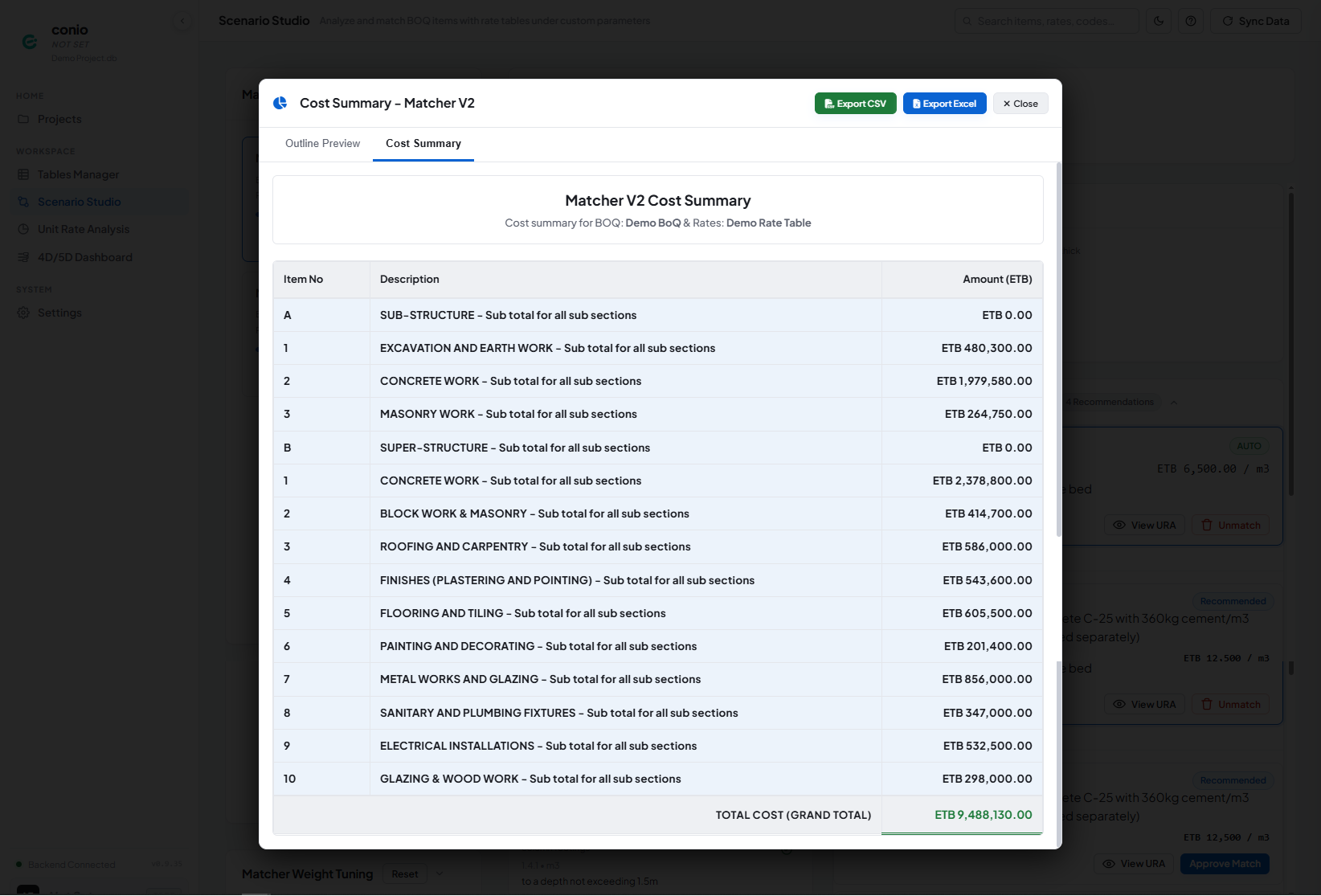
From the Scenario Studio list, click the Preview Rated BOQ icon on a scenario card, then switch to the Cost Summary tab. Every section of the demo BOQ rolls up to a real total — this is what your own project's Cost Summary will look like once matching is complete.
Step 6 — Open the 4D/5D schedule
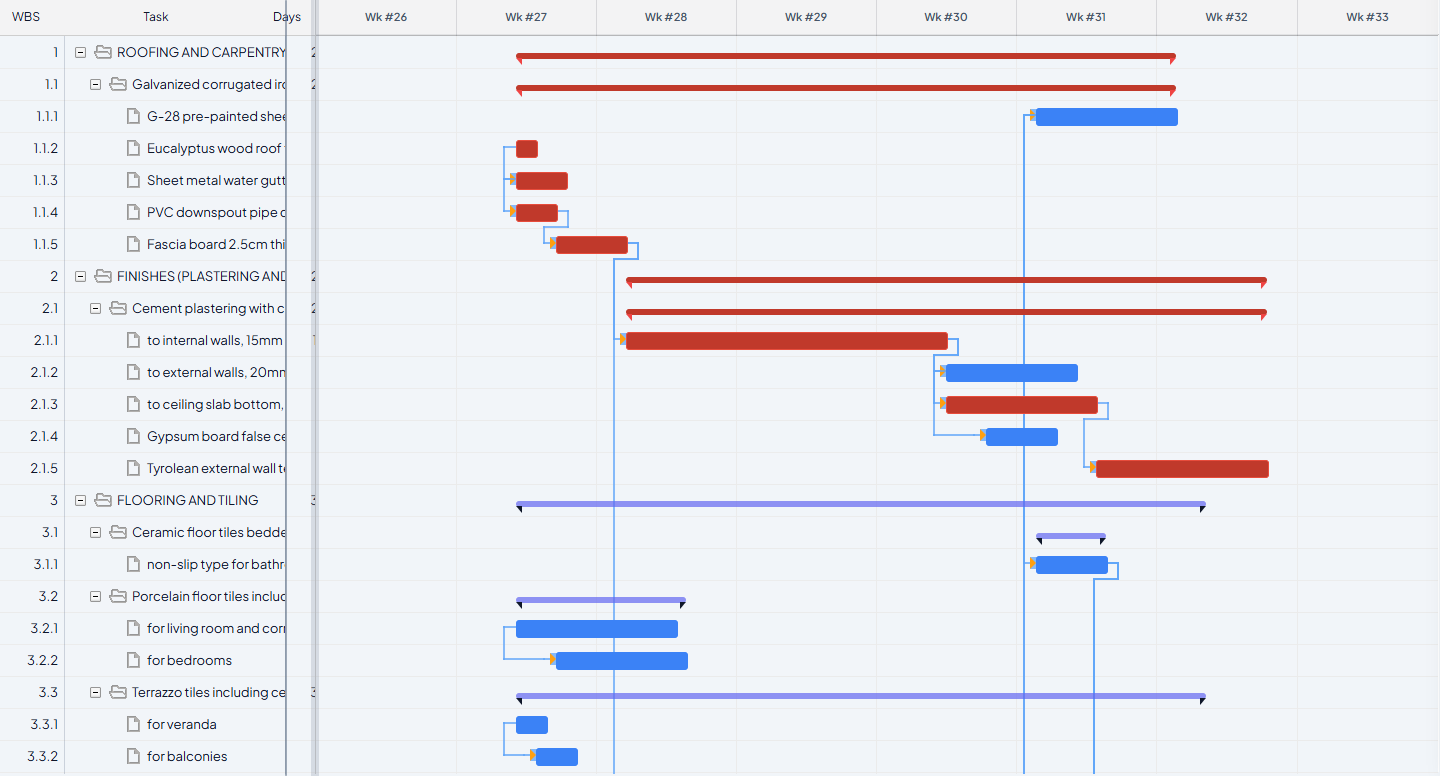
Click 4D/5D Dashboard. The demo project ships with a full CPM schedule already built — dependency links, a critical path, and WBS rollups are all in place. Expand a section or click a task to see its details, without needing to build a schedule from scratch first.
What you should see
A fully worked example at every stage — imported tables, a matched scenario, a populated price book, a real cost total, and a built schedule — with nothing to configure and no AI calls made.
Next
Ready to do this with your own data? Your First Priced BOQ →