URA Analysis — Manual
A Unit Rate Analysis (URA) is a breakdown of the cost components — materials, manpower, and equipment — that make up the unit rate for a matched BOQ item. A manual URA lets you build this breakdown by hand, without AI.
Opening the URA workspace
There are two ways in:
- From Scenario Studio: select a matched BOQ item (status
auto,approved, ormanual), then click View URA / the URA badge on the item row. - From the Unit Rate Analysis page in the left sidebar: choose a scenario, then select any matched item from the Matched Scenario Items list.
Both open the same workspace.
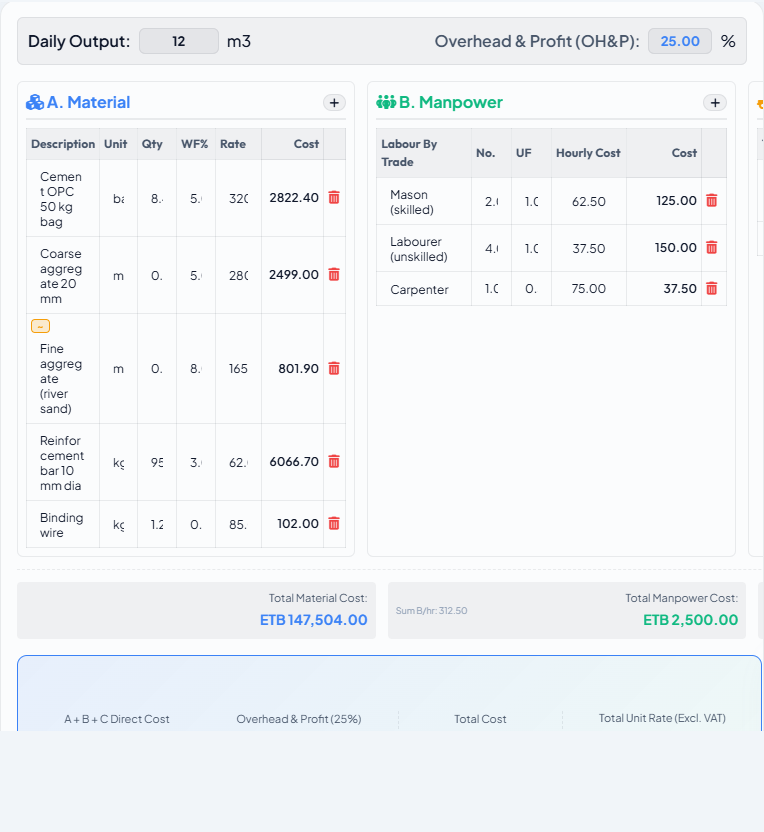
The workspace has three resource sections — A. Material, B. Manpower, C. Equipment — each a spreadsheet grid, plus a single Daily Output field and an Overhead & Profit (OH&P) field at the top that apply to the item as a whole (not per resource row). Below the grids, a totals bar and a cost-split donut chart show the computed unit rate.
Adding resource rows
Material
| Column | What to enter |
|---|---|
| Description | Type to search the active price book; select from autocomplete |
| Unit | Unit of the material (auto-filled from price book) |
| Qty | Amount of this material per unit of BOQ work (e.g. 1.05 m³ cement per m³ concrete) |
| WF% | Waste factor — percentage added for on-site wastage (auto-suggested; editable) |
| Rate | Auto-filled from the price book; shown with exact / fuzzy / ⚠ badge |
Cost per row = Qty × (1 + WF% / 100) × Rate.
Manpower
| Column | What to enter |
|---|---|
| Labour By Trade | Labour category from the price book (e.g. Mason, Labourer) |
| No. | Headcount of this trade in the gang |
| UF | Utilisation factor (0–1) — the fraction of the hour this trade is actively productive; leave at 1.0 unless you have a specific reason to discount it |
| Hourly Cost | Auto-filled from the price book |
Equipment
Same pattern as Manpower, labelled Type instead of trade: No., UF, Hourly Rate.
How the item-level Daily Output ties it together
Set Daily Output once at the top of the workspace — it applies to every Manpower and Equipment row simultaneously; there is no per-row daily output field. The totals bar below the three grids shows costs scaled to a full working day, so you can sanity-check "what does it cost to run this gang and equipment for one day":
Material (daily)  = (Σ Material row costs, already per unit) × Daily Output
Manpower (daily)  = (Σ Manpower No. × UF × Hourly Cost) × 8
Equipment (daily) = (Σ Equipment No. × UF × Hourly Rate) × 8
Cost calculation and OH&P
The Overhead & Profit (OH&P) field at the top of the workspace defaults to the project-wide setting (Settings → OH&P) but can be overridden per item.
Direct Cost (daily) = Material (daily) + Manpower (daily) + Equipment (daily)
OH&P (daily)        = Direct Cost (daily) × (OH&P% / 100)
Total Cost (daily)  = Direct Cost (daily) + OH&P (daily)
Total Unit Rate     = Total Cost (daily) / Daily Output   (shown as "Total Unit Rate, Excl. VAT")
The workspace toolbar
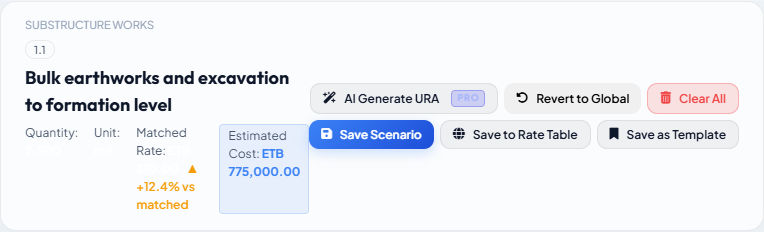
| Button | What it does |
|---|---|
| AI Generate URA SOLO+ | Opens the AI generation modal — see URA Analysis — AI Assisted |
| Revert to Global | Deletes this item's scenario-specific override and falls back to the standard global rate/URA |
| Clear All | Clears the current breakdown for this item |
| Save Scenario | Saves the URA as an override for this item, in this scenario only |
| Save to Rate Table | Saves the URA to the standard rate table globally — this affects every other scenario matched against that rate row. Confirm before using. |
| Save as Template | Promotes the URA to the Template Library for reuse — see below |
The Matched Rate figure next to Quantity/Unit shows the variance between your URA-derived rate and the matched rate table entry inline, e.g. ▼-84.1% vs matched or ▲+12.4% vs matched.
A large variance (typically > 15%) is an early signal that:
- The matched rate table entry is from a different market or region.
- A key resource is unmatched (rate = 0) and dragging the URA cost down.
- The rate table entry was entered without full cost build-up and needs updating.
Saving and promoting
To promote the URA to the Template Library so it can be reused across other items and future scenarios:
- Click Save as Template in the workspace toolbar.
- Enter a Template Name, Work Class, and review the auto-suggested Keywords. Add optional Notes.
- Click Save Template.
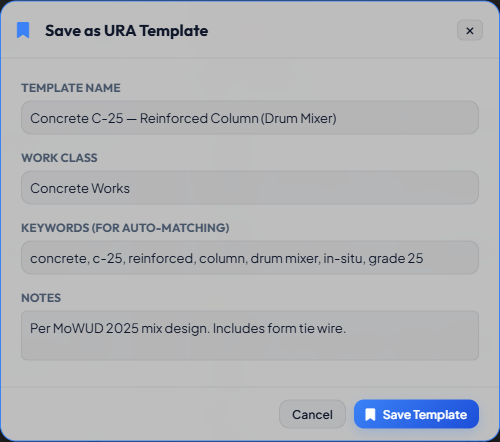
See Template Library for guidance on writing good keywords.