Semantic Search
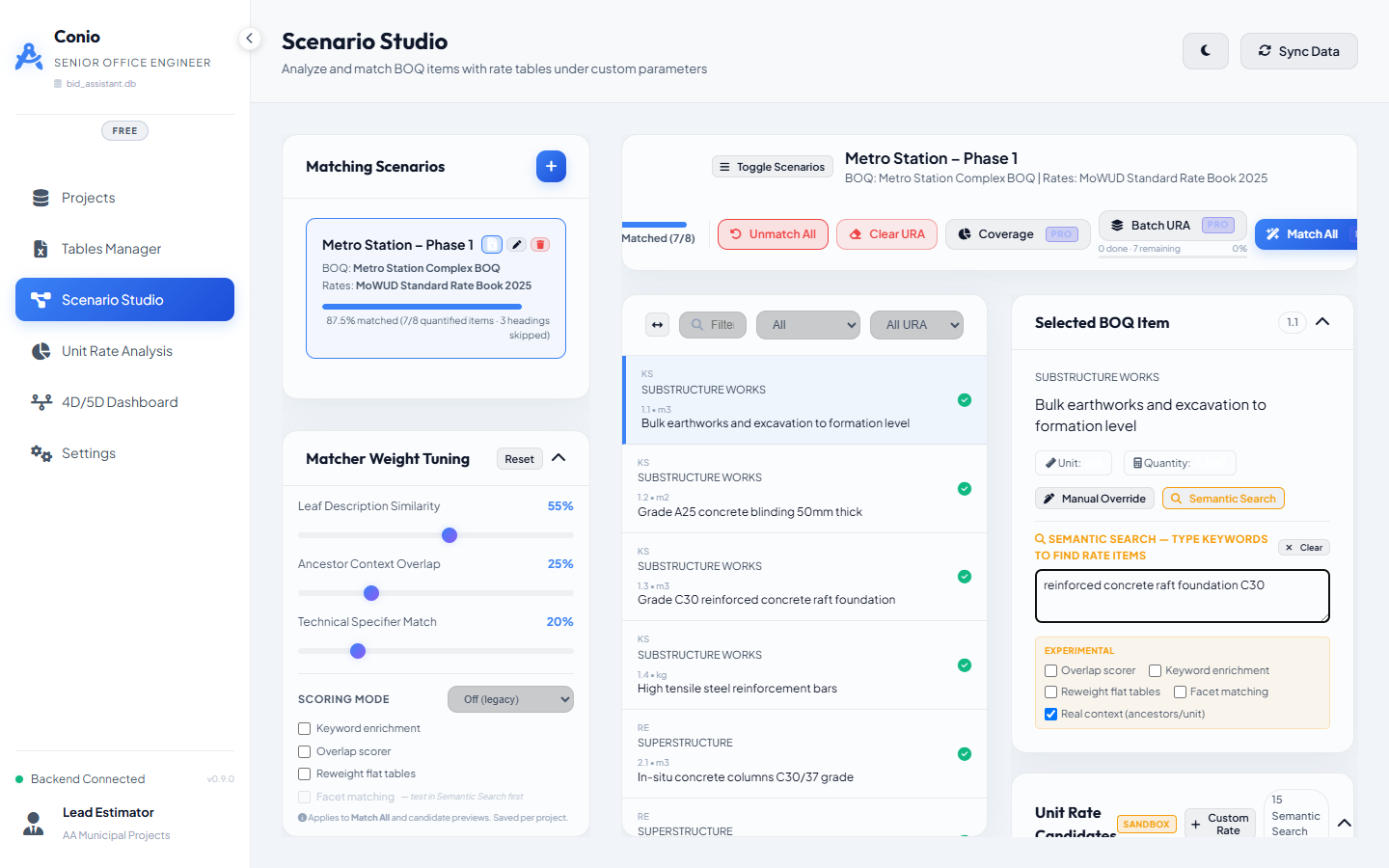
Semantic Search is a diagnostic tool built into Scenario Studio's Selected BOQ Item panel. It lets you type free text — keywords, a rephrased description, or both — and watch the candidate list update live, without saving anything to the database. Use it to understand why an item matches poorly, to hunt for a rate item the normal scoring missed, or to test a scoring flag on one item before turning it on for the whole project.
Opening Semantic Search
- Select a BOQ item in the left panel.
- Click Semantic Search, next to Manual Override.
A panel opens below with a text box and a badge reading SEMANTIC SEARCH — TYPE KEYWORDS TO FIND RATE ITEMS. The Unit Rate Candidates panel header shows a SANDBOX badge while this is open — the ranked list below it is now driven by what you type here, not the item's stored description.
How to use it
- Type keywords (e.g.
concrete slab c-25) or a full rephrased description into the box. - Candidates update automatically after a short pause (debounced).
- Each result shows a score and an Approve button — click it to apply that rate to the BOQ item directly.
- Click Clear to empty the search box and return to an empty state, or select a different BOQ item to exit Semantic Search automatically.
Common uses:
- The item isn't matching well. Type the rate table's own terminology and see if candidates improve. If they do, that's a signal to run AI Refine — it will extract that vocabulary as keywords automatically, instead of you having to search for it manually every time.
- Normal scoring finds nothing usable. Search the rate table directly with your own words, then Approve the right result once you find it.
Experimental flags
The panel exposes the same five scoring flags used in the project-wide Matcher Scoring Profile, so you can test each one against a single item before committing to it for the whole project:
| Flag | What it tests |
|---|---|
| Overlap scorer | Swaps Jaccard similarity for the overlap coefficient on the leaf signal |
| Keyword enrichment | Folds the item's stored description_keywords into the search |
| Reweight flat tables | Redistributes ancestor weight to leaf/spec for flat rate rows |
| Facet matching | Enables facet sub-scoring and grade-conflict penalties for this item only |
| Real context (ancestors/unit) | On (default): replays the item's real ancestor hierarchy and unit. Off: only your typed text drives scoring, with no BOQ context |
Search results always use your project's current Matcher Weight Tuning sliders (Leaf/Ancestor/Spec) — only the five flags above are independently toggleable here.
This is the recommended validation path before enabling Facet matching in the project-wide Matcher Scoring Profile: if a NULL-faceted item or rate row would silently halve your spec signal, you'll see it here first as a suspiciously flat or unchanged ranking.