URA Analysis — AI Assisted SOLO+
AI-assisted URA generation produces a complete resource breakdown for a matched BOQ item in seconds. The AI draws on the active Resource Price Book, the Template Library, and the Generation Contexts you have configured — it never makes up prices.
This chapter covers single-item generation. For the recommended batch workflow that scales across a full BOQ, see Coverage Analysis & Template Seeding.
Importing starter URA templates
Before generating URAs for the first time on a new project, consider importing a starter template pack. A pack from a previous similar project gives the AI a verified structural baseline to adapt, rather than generating every item cold.
Format: CSV with columns name, unit, keywords, materials, labour, equipment. Rates are zeroed on import and re-priced from your active price book at generation time.
Import via Settings → Recipe Library → Import.
Single-item AI generation
- In Scenario Studio or the Unit Rate Analysis page, select a matched BOQ item.
- Click AI Generate URA.
The AI URA Generation Setup modal opens, with three numbered sections.
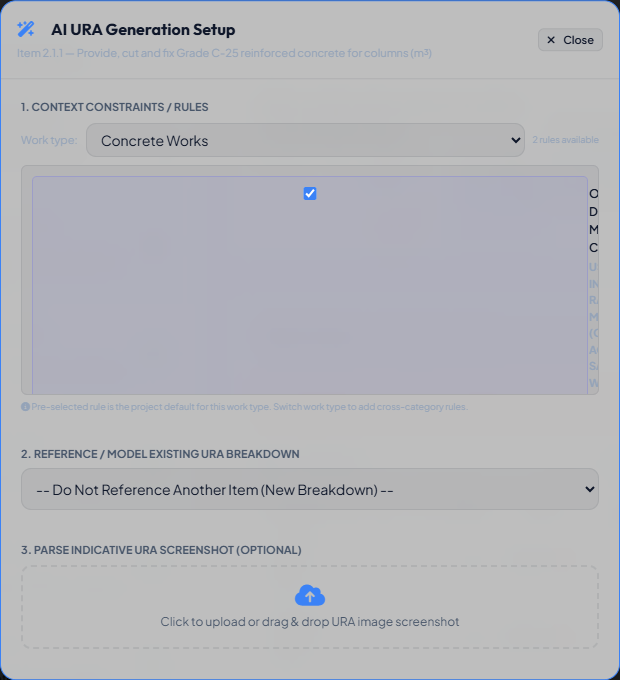
1. Context Constraints / Rules
Pick a Work type from the dropdown — it auto-selects the most relevant category based on keyword scoring against the item's description and ancestor path. Below it, the rules configured for that category are listed as cards (not plain checkboxes): each shows a name, a description of what it instructs the AI to do, and a DEFAULT badge on the project's preferred rule for that category (see Generation Contexts).
- The default rule is pre-checked. Uncheck it if it doesn't apply to this item.
- Check additional rules if this item spans multiple methods.
- Switching Work Type does not uncheck rules already selected from a previous category — you can combine rules from Concrete, Formwork, and Reinforcement for an item that needs all three.
- Click Manage Rules (bottom-left of the modal) to jump straight to Settings → AI URA Context Rules if you need to add or edit a rule.
2. Reference / Model Existing URA Breakdown
An optional dropdown listing every other item in this scenario that already has a URA. Selecting one tells the AI to adopt that item's resource makeup (materials, labour crew, equipment) as a baseline, adjusting only quantities, crew sizes, and usage factors for the new item — the same mechanism as an auto-matched Baseline template, but pointed at an item you chose yourself instead of the closest keyword match. Leave it on -- Do Not Reference Another Item (New Breakdown) -- to let the AI pick from the Template Library normally.
3. Parse Indicative URA Screenshot (Optional)
Upload, drag-and-drop, or paste (Ctrl+V) a screenshot of an indicative URA breakdown — from a PDF, a spreadsheet, or a client-supplied rate build-up. When an image is attached, it becomes the AI's primary instruction: the model reads the table in the image and transcribes it into Conio's resource structure, re-pricing every line from your active price book rather than inventing rates. This is the fastest way to digitize a rate build-up you already have in another format.
Generating
Click AI Generate URA. The AI receives the item description and unit, the selected context rules, the reference URA (if chosen), the parsed screenshot (if attached), and the available resources from the active price book — it never invents a price.
The generated URA opens in the workspace. Review the resource rows, check for unmatched resources, adjust quantities if needed, and click Save Scenario or Save to Rate Table (see URA Analysis — Manual for what each save option does).
Understanding the template tier banner
Every AI-generated URA shows a banner in the workspace header explaining how the Template Library was used:
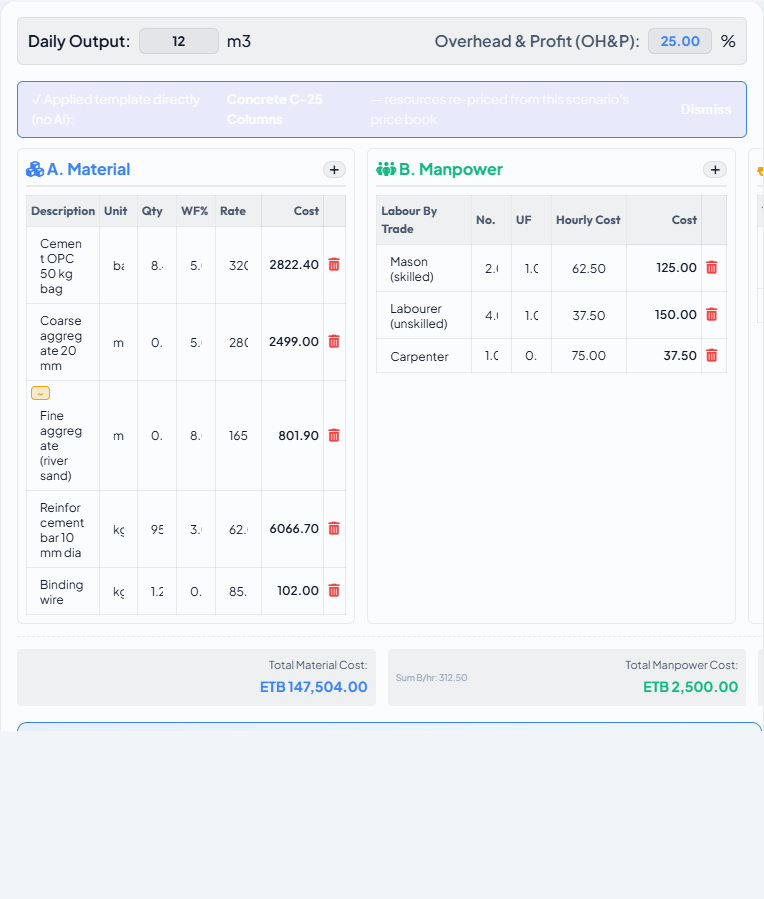
Definitive — no AI call
✓ Applied template directly (no AI) — resources re-priced from this scenario's price book
The matched rate row carries provenance back to a specific template (it was created by Export as Rate Table from the Template Library). The template is adopted verbatim; only the rates are re-resolved from the current price book. This is the fastest and most consistent outcome.
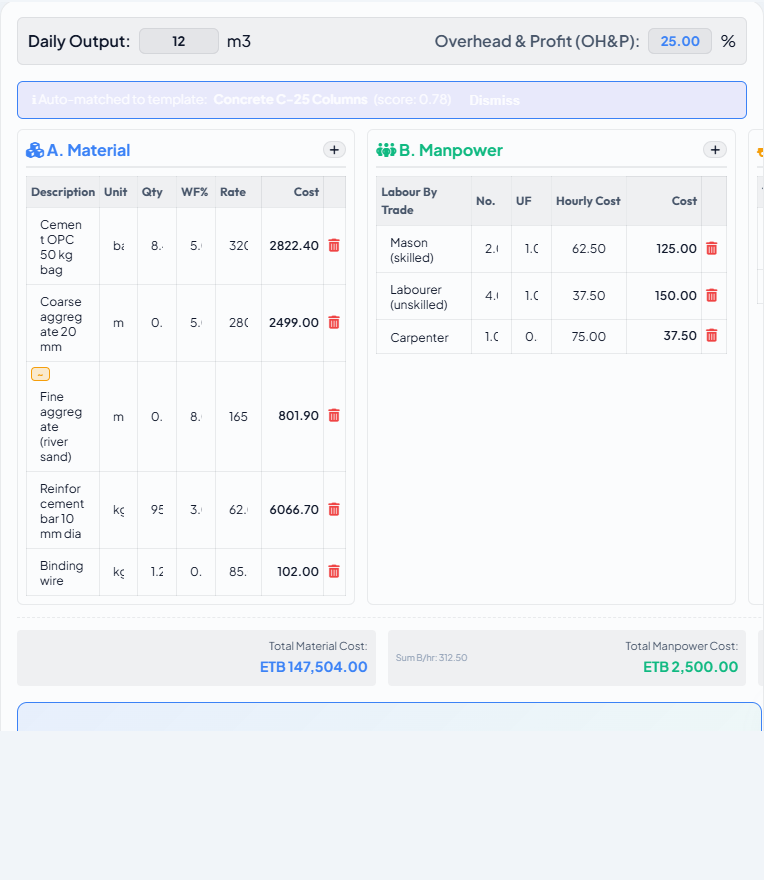
Baseline — AI adjusted quantities only
ℹ Auto-matched to template: [Template Name] (score 0.78)
A template scored ≥ 0.65. The AI kept the resource makeup intact and adjusted only quantities, crew sizes, daily output, and waste factors to fit this specific item.
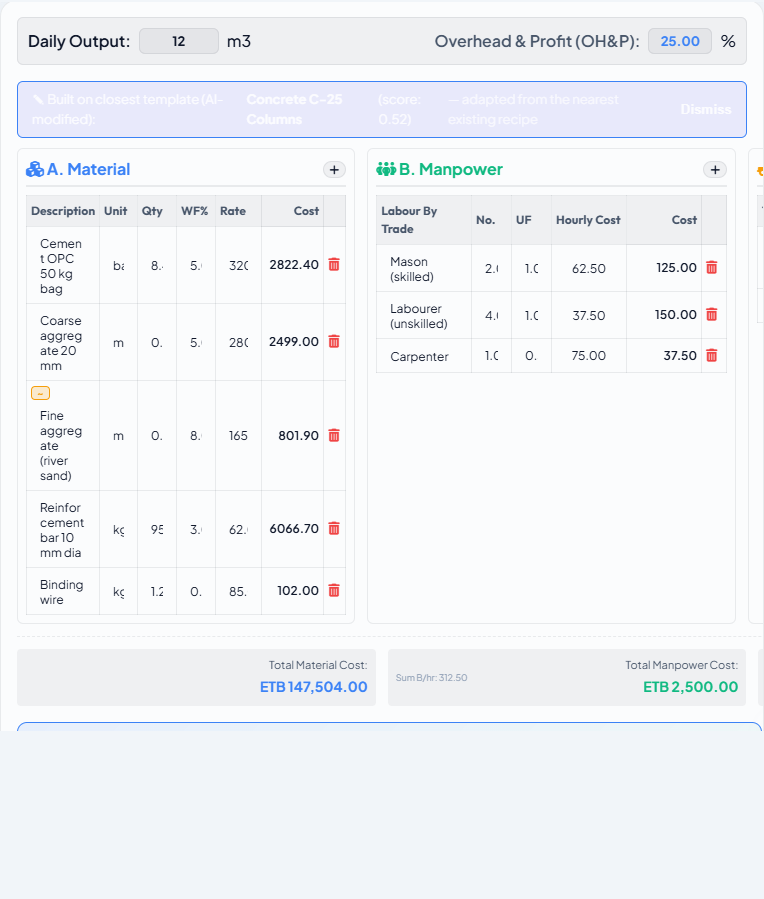
Starting point — AI modified the recipe
✎ Built on closest template (AI-modified): [Template Name] (score 0.52)
The closest template scored between 0.30 and 0.65. The AI used it as a starting point, keeping what applied and adding, removing, or substituting resources as needed for this item.
Cold — generated from scratch
No banner. The best template score was below the floor threshold (0.30). The AI generated a fresh breakdown with no structural reference. Consider seeding a template for this work type if you have multiple similar items.
When to re-generate vs edit manually
Re-generate when:
- The AI selected the wrong work type or context.
- The output is structurally wrong (wrong trade resources entirely).
Edit manually when:
- The structure is correct but a quantity or crew size needs adjustment.
- A resource is unmatched and you want to substitute a close alternative from the price book.
- The waste factor needs a project-specific override.