AI Provider Setup SOLO+
Conio supports five AI providers. All AI features — description refinement, rate matching, and URA generation — run through whichever provider you configure here. You can switch providers at any time without losing any data.
Supported providers
| Provider | Best for | Notes |
|---|---|---|
| Google Gemini | General use; fast and cost-effective | Requires a Google AI Studio API key; subject to per-minute quotas |
| Anthropic Claude | High accuracy on complex descriptions | Requires an Anthropic API key; slightly higher cost per token |
| Local AI (bundled) | Privacy, offline use, or no API key | Model is downloaded inside Conio (about 2.3 or 4.4 GB); no key; slow on CPU (roughly 15–25 s per item in testing). Draft-and-review only. Full guide → |
| Ollama | Fully offline use | Runs a local model on your machine; no API key; no internet required after model download. Full setup guide → |
| GLM-4 | Alternative to Gemini; strong on structured data | Requires a Zhipu AI API key |
Entering your API key
- Open Settings (gear icon in the left sidebar).
- Click AI Provider in the Settings navigation.
- Select your provider tab (Gemini, Claude, GLM, Ollama, or Local AI). Local AI needs a model download instead of a key; see Local AI.
- Paste your API key into the key field.
- Click Save.
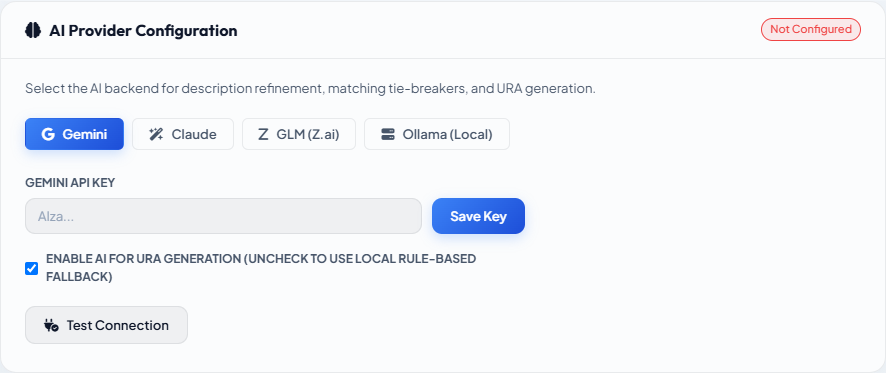
API keys are stored locally in your project database and in the app's configuration — they are never sent to any Conio server.
Testing your connection
Click Test after saving your key. The test sends a small probe request to the provider and reports the result inline.
Common error messages and what they mean:
| Message | Cause | Fix |
|---|---|---|
API key not valid | Key is incorrect or has been revoked | Generate a new key in your provider's console |
Resource exhausted / Quota exceeded | You have hit your provider's rate limit | Wait for the quota window to reset (usually 1 minute); upgrade your provider plan |
Connection refused (Ollama) | Ollama is not running on this machine | Start Ollama: open a terminal and run ollama serve |
Timeout | Network latency or provider outage | Try again; check provider status page |
Choosing a provider
For most users: Start with Google Gemini. It has a generous free tier, is fast, and handles construction terminology well. If you exhaust the free quota during a large refine or batch job, the persistent error panel will show the exact retry time.
For privacy, offline work, or no API key — bundled option: Use Local AI. It needs no separate install. It is much slower than a cloud provider and is a draft-and-review tool: every suggestion goes to a review queue. It has only been tested on description refinement and keyword indexing, and on messy data it makes mistakes; for large or messy BOQs, use a cloud provider. See Local AI.
For offline environments with your own model server: Configure Ollama with a local model. See the Ollama Setup guide for installation, Docker network configuration, and model selection.
For the highest description accuracy: Claude produces the most precise abbreviation expansions and keyword extractions on ambiguous descriptions. The tradeoff is slightly higher cost per run.
Switching providers mid-project
Changing the provider in Settings takes effect on the next AI action. Existing refined descriptions, matched rates, and generated URAs are not affected — they were produced by whichever provider was active at the time and are stored in your database permanently.