Manual Rate Matching
Manual matching lets you review candidates and confirm or override each match decision without running AI. It is the baseline workflow available on the Free tier and is also how you review and correct AI-generated matches on the Pro tier.
The Unit Rate Candidates panel
Select any BOQ item in the left panel. The Unit Rate Candidates panel on the right loads the top-ranked rate table candidate for that description, plus any other potential candidates.
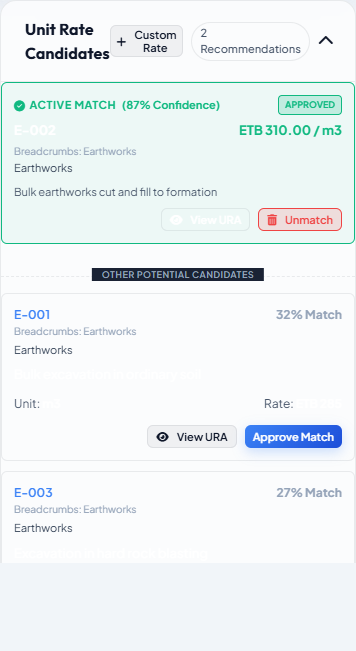
Each candidate card shows:
- Match score, shown as a percentage (e.g.
85%) — higher is better. - Rate table description — the rate item text as imported.
- Unit and rate — the rate item's unit of measurement and unit rate.
Candidates are sorted by score descending. The top candidate is shown first.
Candidates with a score below the configured minimum threshold are not shown. The default threshold (set in Settings) filters out clearly irrelevant matches. If no candidates appear at all, the threshold may be too high or the description may need refinement — see AI Refine.
Approving a match
When a candidate looks correct:
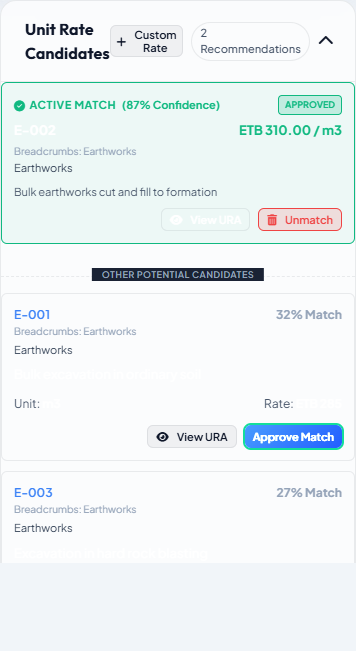
- Click Approve Match on the candidate card.
The BOQ item's status changes to approved, and the rate from the approved candidate is recorded for cost calculation. The card that becomes the active match shows an Active Match badge with its confidence score, and a View URA / Unmatch action pair.
Unit conformance
Conio does not currently block approval when a candidate's unit differs from the BOQ item's unit — matching is score-based, and unit is one input to that score, not an enforced hard rule. Always check the Unit shown on the candidate card against the BOQ item's unit before approving, especially for candidates with a lower score. If you approve a mismatched unit by accident, use Unmatch and correct it.
Manual override
If none of the candidates are correct — or you want to use a rate that is not in the rate table:
- Select the BOQ item, then click Manual Override in the Selected BOQ Item panel.
- Answer the three prompts in order: custom description, custom unit, and custom unit rate (ETB).
The item's status changes to manual. The custom rate is used for cost calculations.
Semantic Search
If the ranked candidates don't include what you're looking for, click Semantic Search in the Selected BOQ Item panel to open a keyword-search box. Type keywords to search the rate table directly, independent of the item's description or score threshold — each result has its own Approve button.
Unmatching an item
To reset an item back to unmatched:
- Select the item — its active match card shows in the Unit Rate Candidates panel.
- Click Unmatch on that card.
The match decision and rate are cleared. The item returns to the unmatched queue for re-matching.
Unmatch All in the scenario toolbar resets every item in the scenario at once. URA breakdowns attached to items are preserved — only the match decisions are cleared.
Next step
Configure the Matcher Scoring Profile to improve AI match quality →